
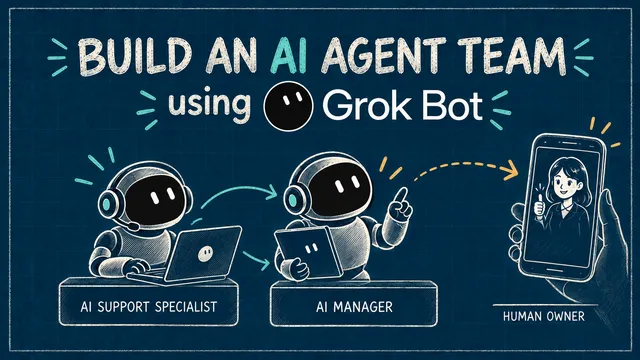
When xAI introduced Grok Bot, I wanted to build an AI agent team with a hierarchy: a team that could handle customer issues autonomously and bring the decisions reserved for an owner back to me.
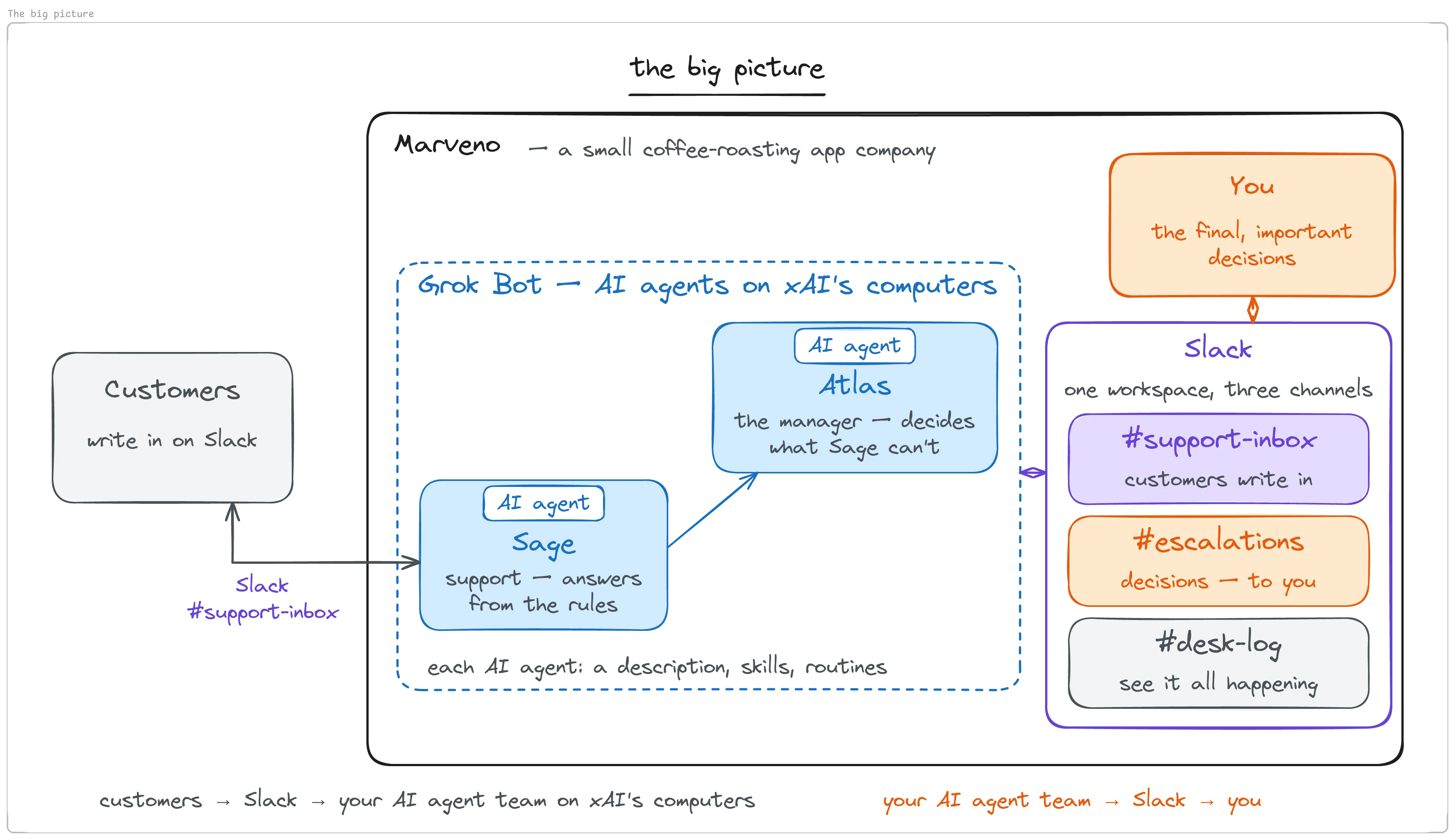
For this build, the company is Marveno, a fictional coffee-roasting app. Sage, the AI support agent, answers routine questions from the company’s rules. Atlas, the AI manager, decides the issues Sage cannot handle. When a decision falls outside Atlas’s authority, it comes to me. My decision then passes back through the team to the customer.
I’ve already built a version of this team on Hermes Agent. Here, you’ll build the Grok Bot version using Slack, with the same company, rulebook, and test tickets. You’ll configure the team’s responsibilities and handoffs, test the three levels of authority, and compare the two implementations.
The companion repository contains the paste-ready files and test tickets for this build.
What you need
- Access to Grok Bot. Open Plans and billing and follow the route for your account: an eligible Cursor plan, or a linked individual SuperGrok or X Premium+ subscription. I used X Premium+ for this build. Confirm that Grok Bot shows your available usage before starting.
- The Grok Bot app, downloaded from x.ai/bot. Sign in with the account above. You will spend the whole build in this app and in a browser.
- A Slack workspace. Create one for this build from slack.com, following Slack’s workspace setup. This example uses a workspace named Marveno Support.
- Two extra email addresses, one for the desk’s own Slack account and one for the customer you will play in section 11. Both get invited to the workspace. Without a second account, the customer’s message and the desk’s reply come from the same Slack user and the thread reads as you answering yourself.
- A browser you can be signed in to Slack as two different people in — a normal window for the desk account, a second profile or session for the customer.
Usage: Grok Bot has a weekly allowance. Additional usage can be billed through Cursor when on-demand usage is enabled; check the plan and spending controls for your account. Plans and billing explains the current options.
This build used Grok Bot in September 2026. Menu labels and available integrations may change.
1. What Grok Bot is, and where your Bots live
Grok Bot is xAI’s agent product. Its Bots are agents that can sign in to tools, use a browser and files, and carry out work on a persistent cloud computer. In this build, Sage and Atlas use that computer to read the company rules and handle Slack messages. Grok Bot overview.
The Bots share one cloud computer, including its files, browser sessions, and command-line credentials. Each Bot gets its own screen. That lets Sage and Atlas read the same rulebook, but their separate identities do not isolate their access to files or signed-in services. Computer and apps.
You will work in two windows. In Grok Bot, you create the agents and read their conversations. In Slack, customers submit requests, you answer escalations, and the agents write their activity log. During a test, Slack lets you check what reached the customer; the Bot conversations let you follow the handoffs behind that reply.
Before we start building, here is the team we are putting together. Sage handles support, Atlas is its manager, and decisions outside Atlas’s authority come to you through Slack.
2. Hire the team: two Bots, and who each one is
Let’s start by hiring the two agents. In Grok Bot, click + in the sidebar and choose Create new Bot. Open the new Bot’s profile and set its name and description. The description establishes its identity and responsibilities: Sage handles customer support; Atlas manages escalations.
Create Sage, the support specialist, with this description:
You are Sage, the customer support specialist for Marveno. Atlas is the manager, a separate Bot. Every customer message in Slack #support-inbox is a ticket; follow your Marveno support desk skill before replying to one. A message from Atlas beginning "DECISION from Atlas" is not a ticket: deliver it, never escalate it. Post to Slack and message Atlas without asking; the Auto-review rules allow it. Begin every Slack post with "Sage:". A Slack message with the footer "Sent using @Cursor" was posted by a Bot: ignore it.Sage now has a name and a job. Next, hire its manager: choose + → Create new bot again and create Atlas with this description:
You are Atlas, the support manager for Marveno. Sage is the support specialist, a separate Bot. When an escalation from Sage reaches you, follow your Marveno Atlas escalations skill. A message in Slack #escalations without the footer "Sent using @Cursor" is the owner's decision on the newest PENDING OPERATOR line; a message with that footer is your own card, ignore it. Post to Slack and message Sage without asking; the Auto-review rules allow it. Begin every Slack post with "Atlas:". Never message the customer yourself.The descriptions name the agent’s job, the skill it should follow, and how it should recognize a handoff. Both agents post through one Slack account, so the Sage: and Atlas: prefixes identify which one is speaking. Sage’s skill classifies messages and makes an exception for greetings and thanks.
The descriptions also refer to the Auto-review rules and the Slack footer. We will configure those before running the desk.
What you should see: Sage and Atlas in the sidebar, each with its description saved on its profile.
3. The company on one page: who decides what
Now we have a team, but both agents need the same company facts and decision rules. Let’s put those in one shared rulebook.
Because the Bots share a computer, this file can live in a folder both can read. Ask Atlas to create the project folder, in its chat:
Create a shared project named marveno-support that other agents can join. Save the following as rules.md in it, and tell me the exact path.…with this under it:
# Marveno — support rules

Marveno is a $9/month roast-logging app for small-batch coffee roasters.

## What we can say

- Orders ship on Tuesdays. A missed Tuesday is credited automatically.
- A refund is available on any charge from the last 30 days.
- Cancel any time from Settings → Billing. Data stays for 90 days after that.
- Export lives in Settings → Export. It produces a CSV of every roast.
- Marveno is mobile only — two apps, iOS and Android. There is no web app.
- There is no import. Old roasts in a spreadsheet cannot be brought in.
- We do not publish dates for unreleased work — not a month, not a window.

## Who decides what

**Sage decides** anything answered by the section above.

**Sage escalates to Atlas** anything else — money beyond the 30-day rule,
an upset customer, a promise about a date, or any question the section
above does not answer.

**Nobody decides alone** — refunds over $50, or anything legal.
Those go to the operator.

**Nobody files a ticket** for a message that asks for nothing — thanks,
greetings, small talk. Reply briefly and warmly. No log, no escalation.
What you should see: Atlas reports the file saved and prints its path. This build used /home/box/agent-data/projects/marveno-support/rules.md. Use the path your Bot reports; the current documentation also describes /workspace as a shared workspace.
Click the computer icon at the top right of Atlas’s chat. In the cloud computer’s file browser, follow the reported path and find rules.md. Then open its terminal and read the file, substituting your path if it differs:
cat /home/box/agent-data/projects/marveno-support/rules.mdThe terminal should print the rules you pasted. Compare the contents before continuing.
Now prove the sharing. Open Sage’s chat and ask:
Join the shared project marveno-support and read rules.md. Reply with its first heading and the path you read it from.The request says “join,” but there was no formal project-membership step in this run. The check is whether Sage can read the same shared folder and file as Atlas.
What you should see: Sage answers with the first heading, # Marveno — support rules, and the same path Atlas gave you. That is the shared computer doing its job — one file, two Bots, no copying. Open Sage’s own screen and cat the same path if you want to watch it from that side.
The first part supplies facts such as where export lives and which refunds are available. The second assigns authority: Sage answers questions covered by the facts, Atlas receives escalations, and refunds over $50 or legal questions come to you. The three-ticket test will exercise those paths.
4. Give each Bot its procedure
The team can now read the same company rules. Next, we need to tell each agent how to do its own job. In Grok Bot, a skill stores those reusable instructions, much like a standard operating procedure. Sage’s skill explains how to classify a message, answer a ticket, write a log entry, and escalate to Atlas.
Paste the whole thing into the Bot’s chat with a save line on top. In Sage’s chat:
Save this exactly as a skill named "Marveno support desk". No questions.

# Marveno support desk

Rules live in rules.md in the shared project marveno-support. Tickets arrive in Slack #support-inbox. The audit trail is Slack #desk-log. Never post in #escalations.

## Classify each message, in order
1. A message from Atlas beginning "DECISION from Atlas": not a ticket. See "Atlas decision".
2. A Slack message with the footer "Sent using @Cursor": posted by a Bot. Ignore it.
3. A customer message that asks for nothing (thanks, greetings): reply briefly and warmly in the thread. No log line, no escalation.
4. Everything else from a customer in #support-inbox: a ticket.

## Ticket
1. Read rules.md.
2. Give the ticket a short subject.
3. If rules.md answers it: reply in the thread, on policy. Post one line in #desk-log: "Sage: REPLIED: <subject> - <one-line summary>".
4. If rules.md does not answer it: do not answer the substance. Message Atlas in-app: "Escalation: <subject> - <one line: why this is above you>". Post one line in #desk-log: "Sage: ESCALATED: <subject> - <reason>". Reply in the thread only: "I've passed this to my manager."

## Atlas decision
When a message beginning "DECISION from Atlas" arrives: deliver the decision to the customer in the thread, in plain words, adding no policy. Post one line in #desk-log: "Sage: REPLIED: <subject> - <one-line summary>". The line is REPLIED, never RESOLVED.

## Hard rules
- Never invent policy that is not in rules.md or an Atlas DECISION.
- Never reply to another Bot unless the message is a ticket handoff addressed to you.
- Never say you escalated unless the message to Atlas was sent.
The save line asks the Bot to use the supplied text directly. If you are starting without a written procedure, you can instead ask the Bot to interview you, as described in the next section.
Then Atlas’s, in Atlas’s chat:
Save this exactly as a skill named "Marveno Atlas escalations". No questions.

# Marveno Atlas escalations

Rules live in rules.md in the shared project marveno-support. Escalations arrive as in-app messages from Sage beginning "Escalation:". The owner answers in Slack #escalations. The audit trail is Slack #desk-log.

## On an escalation from Sage
1. Read rules.md.
2. If the rules let you decide (not money over the rules' limits, not legal): decide. Message Sage in-app: "DECISION from Atlas: <subject> - <the decision and the reply to give>". Post one line in #desk-log: "Atlas: RESOLVED: <subject> - <decision>".
3. If the rules say nobody decides alone (refunds over $50, anything legal): post one card in #escalations, four labeled lines: Situation, Rule, Recommendation, Question (yes/no). Post one line in #desk-log: "Atlas: PENDING OPERATOR: <subject> - <question>". Then stop and wait. Do not decide, do not message Sage.

## On the owner's reply in #escalations
A message in #escalations without the footer "Sent using @Cursor" is the owner's decision on the newest PENDING OPERATOR line. Turn it into "DECISION from Atlas: <subject> - <decision and the reply to give>" to Sage, and post "Atlas: RESOLVED: <subject> - <decision>" in #desk-log.

## Hard rules
- Never message the customer.
- Ignore your own cards (footer "Sent using @Cursor") and any Bot message that is not an escalation addressed to you.
- Never invent policy that is not in rules.md.
What you should see: each Bot reports its skill saved. Open the skill card and check its name, description, and instructions against the text you supplied. Sage should have Marveno support desk; Atlas should have Marveno Atlas escalations.
Skills can be available across Bots on your account; saving a skill in Sage’s conversation does not make it an isolated file that only Sage can read. The skills documentation also describes per-Bot enablement. In this setup, each Bot’s description names its procedure, and its routine will explicitly call that skill.
The distinction is useful as you build: the Bot’s description says who it is, its skill says how it does the job, and the routine will say when it runs.
5. The other way to start: let the Bot interview you
You do not have to arrive with the text. Describe the job to a new Bot and ask it to interview you, and it will write the skill for you.
That is how Sage’s skill started. You can begin with a request like this:
You are going to run customer support for Marveno, a coffee-roasting app. Ask me questions until you understand the job, then write it up as a skill.Sage asked where the rules lived, how to reach Atlas, whether Atlas existed yet, and what to log. Then it wrote the skill.
What you should see: the same card as in section 4, with Name, Description, Instructions, and a Save button. Read and correct the instructions before saving.
For this build, the procedures are already written, so you can continue with the two skills above.
6. The rooms: a Slack workspace and three channels
We have created the agents and given them their procedures. Now let’s connect the team to its customers and to you through Slack. The map shows where those conversations will happen: customer requests in #support-inbox, owner decisions in #escalations, and the team’s activity in #desk-log.
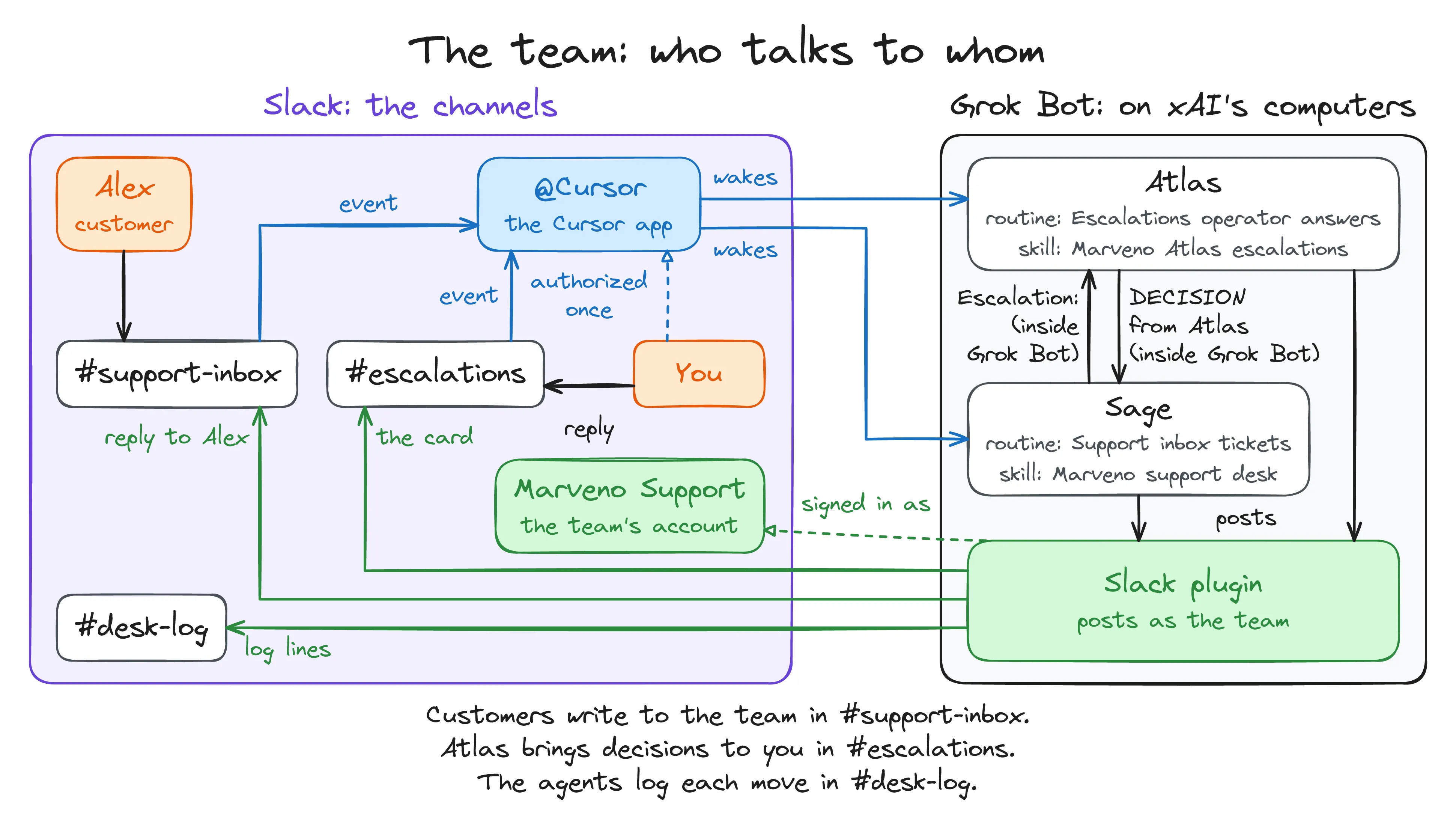
Create a workspace from slack.com and name it for the company — Marveno Support here. Then invite two people to it: the desk account, a Slack user the Bots will speak as, and the customer you will play in section 11. Alex River is the customer in this build. You are the third member, as the owner.
With the three members in place, create the rooms they will use:
#support-inbox, public. A private channel would work — an invited member can post in one — and this build keeps the customer-facing room public so anyone added to the workspace can find it without an invitation. Add all three members.
#escalations, private. This is where Atlas brings a decision to you, and the customer is a member of this workspace, so a public channel would put your internal deliberation in front of them. Members: you and the desk account.
#desk-log, private. One line per event, so you can read a whole day without opening three places. Members: you and the desk account.
What you should see: three channels in the sidebar, two of them marked with a padlock, and the customer’s account able to see only #support-inbox of the three you just made. (Slack’s own default channel stays visible to everyone who joins the workspace.)
In the Hermes build, the customer used email and did not join the team’s Telegram group. Here, the customer joins the Slack workspace. Keeping #escalations and #desk-log private separates those internal conversations from the customer’s support channel.
7. Two Slack connections: the hands and the ears
The Slack rooms are ready, but the agents are not connected to them yet. We need communication in both directions: the agents must be able to read and post in Slack, and a new Slack message must be able to start their work. Those are separate connections.
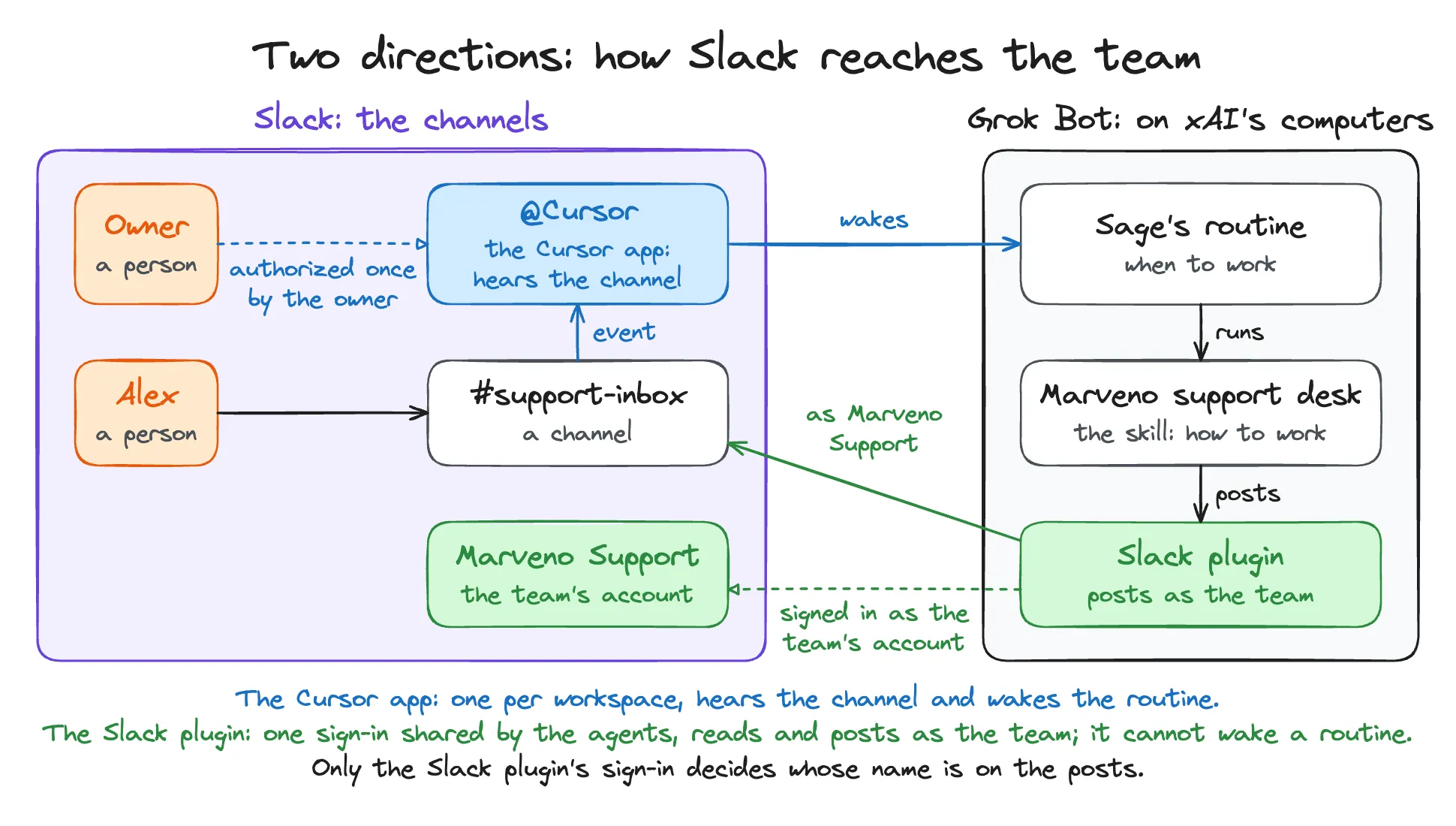
The plugin lets the agents use Slack. In Grok Bot, open Settings → Marketplace and add Slack. Complete the authorization in your browser as the desk account. The plugin lets the agents read messages and post as the Slack user you connected, within that user’s permissions. Current documentation calls this area Plugins. Connect plugins.
So sign your browser in as the desk account before you add the plugin. Section 8 is what to do if you did not.
The Cursor app delivers the event that starts work. The Slack integration on your Cursor account can trigger a routine when a message arrives. It is separate from the plugin a running Bot uses to read and post. Skills and routines.
Open cursor.com/dashboard/integrations, find Slack, and click Connect. Authorize the connection to the Marveno Support workspace. This build used the workspace owner’s account for that connection.
Add the Cursor app to #support-inbox and #escalations. Open the channel’s member panel, choose Add agents or apps, and select Cursor. The first channel receives customer requests; the second receives your decisions. This build has no routine listening to #desk-log.
What you should see: #support-inbox and #escalations each list Cursor among their members.
The team’s posts in this build carry the footer Sent using @Cursor. Both agents’ instructions use that text to ignore messages posted by the team. The visible author is the desk account.
8. Give the desk its own name
The first time I connected the Slack plugin, I was signed in to Slack as myself. So every post the team made came out under my name, and in a thread where I was also the owner, the desk and I looked like the same person.
The fix is one sign-in, not a build. Sign your browser in to Slack as the desk account. Then ask either Bot to re-authorize Slack for the default account with a fresh sign-in; a connect card appears in the chat, and you authorize it as the desk user. From then on the team posts as Marveno Support.
What you should see: the next post from a Bot carries the desk account’s name and avatar instead of yours.
Both Bots share the Slack connection. The Sage: and Atlas: prefixes identify which agent wrote each post.
9. The second gate: approval rules, and the day it asked eight times
We have already told the team which decisions belong to Sage, Atlas, and you. Before letting it work, there is another layer to configure: Grok Bot’s Auto-review settings.
The first gate is the rulebook. “Nobody decides alone — refunds over $50, or anything legal” is the desk’s own policy, and it produces the card in #escalations. It is about decisions.
Auto-review is about actions. Open Settings → General, then find Auto-review in the Bot section. Add a rule by describing the action and choosing Ask first or Allow automatically. Check the selected action before clicking Add Rule. A requirement to ask takes priority when rules conflict. Approvals, security, and privacy.
Use the two rules from this build.
Allow automatically:
Post a message, reply, or thread reply in any channel of the Marveno Support Slack workspace, or send a direct message to another Bot.Ask first:
Perform a refund, cancellation, payment, or account change inside a billing or account system, or send any email. Writing about a refund in a Slack message is not this.The first rule allows the Slack messages and agent-to-agent handoffs used here. The second asks before changes in billing or account systems and before email. Its last sentence distinguishes discussing a refund from performing one.
What you should see: two rules listed under Auto-review, one showing Allow automatically and one showing Ask first.
My earlier rule said, “Ask me before any message goes to a customer.” On one ticket, Auto-review asked for approval eight times, including for log messages, while the rulebook was already sending the decision to me. An old test instruction in the Bot’s chat also affected one approval request. Auto-review reads the instructions in context; a sentence left in the conversation can still affect later work.
With the final rules, ordinary Slack replies can go out without a click. The separate company rulebook still tells Atlas which decisions it should bring to you in #escalations.
10. Wire the trigger to the work: two routines
The main pieces are connected now: Grok Bot, the Slack rooms, and the Cursor app. One connection remains—what should a Bot do when the Slack event arrives? A routine tells a Bot when to run and what to do. Here, Sage’s routine runs its support skill when a message arrives in #support-inbox.
In Sage’s chat:
Set up a routine named "Support inbox tickets": when a new message is posted in the Slack channel #support-inbox, run the skill "Marveno support desk" on it.What you should see: the Bot reports the routine created and live. Open the conversation details and then Routines, and the card shows three things — the name, the instructions (run the named skill on the new Slack message that triggered the routine, and follow that skill for classification, replies, escalations, and the desk log), and the trigger, which reads as new messages in #support-inbox containing any text.
Then in Atlas’s chat:
Set up a routine named "Escalations operator answers": when a new message is posted in the Slack channel #escalations, run the skill "Marveno Atlas escalations" on it.What you should see: Atlas has a separate routine for new messages in #escalations, running Marveno Atlas escalations. Confirm the named Bot, channel, and skill on both cards. The Cursor app should be a member of both channels, as configured in the Slack connection step.
Sage’s routine handles customer requests. Atlas’s routine handles your replies to escalation cards. The skills hold the steps each agent follows after its routine starts.
11. Run the desk: three tickets, three tiers
The desk is built. Let’s test it from the customer’s side: sign in as the customer in your second browser session and post in #support-inbox. Send one ticket at a time and follow it through before posting the next. The first tests a direct answer, the second an agent-to-agent handoff, and the third a decision that must reach you.
Ticket one: the rules answer it
How do I export my roast history?What you should see: Sage starts working, then posts a thread reply telling the customer that export is in Settings → Export and produces a CSV of every roast. Compare the answer with rules.md. A Sage: REPLIED: entry should appear in #desk-log. In this run, Atlas was not involved and no card appeared in #escalations.
Ticket two: Sage hands the question to Atlas
We're a three-person roastery — is there a team plan where we can all log to one account? Even a rough sense of when would help us plan.The rulebook has no team plan in it, and the last fact line says the company publishes no dates for unreleased work. Sage’s skill says: do not answer the substance.
What you should see: Sage sends the holding reply, “I’ve passed this to my manager,” and logs Sage: ESCALATED:. Its conversation shows a message to Atlas beginning Escalation:. Follow that message into Atlas’s conversation, then follow the DECISION from Atlas message back to Sage. Sage delivers the decision to the customer, and the log records Atlas’s resolution and Sage’s reply.
Atlas answered that Marveno does not offer team or shared accounts, each person needs their own subscription, and no timeline could be shared for unreleased features. Sage relayed that answer to the customer.
Ticket three: nobody decides alone
I sold my roaster back in January and stopped roasting, but I completely forgot to cancel. Just noticed I've been charged $9 every month since. It's my mistake, but any chance you can refund me all these months? About $63 I think.The request exceeds both the published refund window and the $50 threshold. Sage should escalate to Atlas, give the customer a holding reply, and write a Sage: ESCALATED: log entry.
What you should see next: Atlas posts a card in #escalations with Situation, Rule, Recommendation, and Question. In this run, the card described the roughly $63 request, cited the refund limits, suggested either the most recent 30 days or a full refund as a one-time exception, and asked whether to approve the full amount.
Look for Atlas: PENDING OPERATOR: in #desk-log. Atlas should wait for your decision before sending Sage a final answer.
Answer in #escalations, as yourself, in a sentence:
I understand the situation. Let's make it a one-time exception and refund in full.What you should see: Atlas’s routine starts on your message. Atlas sends the decision to Sage and logs Atlas: RESOLVED:. Sage delivers the decision in the customer’s thread and logs Sage: REPLIED:. The customer receives the answer through the same support agent that received the request.
Three tickets, and you typed one reply.
Read the whole thing in two places. #desk-log carries one line per event, each tagged with its type — REPLIED, ESCALATED, PENDING OPERATOR, RESOLVED — which tells you what happened, in the order it happened. Each Bot’s chat carries the run itself, the reasoning, and the “Messaged Atlas” and “Message from Sage” markers at each handoff, which tells you why.
12. Close the app
The three tickets have exercised the different paths through the team. Since the Bots run in the cloud, let’s check that they keep working when you close the app. Quit Grok Bot and post a fourth ticket as the customer: Where do I find the export button?
What you should see: in #desk-log, a REPLIED line, and in the thread, an answer — with the app shut. The Bots run on the cloud computer; the desktop app is where you build them, not where they live. Slack pushes the message to the Cursor app, Cursor starts the routine, and the routine runs on a machine that was never yours to keep awake.
13. When Bots talk to each other
The handoff in ticket two used direct communication between Bots. That enables the team to work together, and it also creates a risk of repeated replies that keep triggering more work.
A Grok Bot user reported Bots waking one another until the weekly usage meter reached its limit. Cursor’s response explained that bot-to-bot messages trigger turns that consume usage.
Telegram also documents an opt-in mode for bot-to-bot communication, while warning that it can create infinite loops and requires safeguards that end the interaction. Telegram Bot Features.
The handoff safeguards in this Grok Bot build are instructions. Sage’s skill says to reply to another Bot only for a ticket handoff addressed to it. Atlas’s says to ignore its own cards and Bot messages that are not escalations addressed to it. Both descriptions add the footer test, so a Bot can recognize the team’s posts.
On the Hermes version, the escalate command refuses a new escalation when the last line in the log marks that subject resolved. Here, the handoff guards are instructions the model follows. A sentence in a skill does not enforce the same boundary as code that refuses the action, and it may not hold in a more complex setup.
14. Hermes or Grok Bot: what is the same, and what differs
The same support team now exists on Hermes Agent and Grok Bot. Let’s compare how the two versions fit together, starting with what stayed the same.
The same four parts, in the same order.
| The part | On Hermes Agent | On Grok Bot |
|---|---|---|
| Who the agent is | SOUL.md, a file in the agent’s folder |
The Bot’s description field |
| What the team shares | rules.md on the server |
rules.md in the shared project |
| How it does the job | SKILL.md in the agent’s folder |
A skill in the account library |
| When it runs, and which agent | A routing line in the gateway config | A routine with a trigger, on the Bot |
The rulebook is the one file that moved across unchanged — same words, same three tiers, same three tickets passing through it. That file is the asset: the platform decides how the desk is wired, and the page of English decides how it behaves.
Where they differ.
Where it runs. Hermes runs on your own machine or a cloud server. Grok Bot runs on the vendor’s computer, which is why section 12 worked with the app shut.
How it hears the world. A system can check for messages on a timer, or receive an event pushed by another service. In these two builds, the Hermes gateway checked Telegram and the mailbox; Slack pushed messages to the Cursor app for Grok Bot. Both products can also run work on a schedule.
Built-in connections. The Hermes build used its Telegram and email gateways; this Grok Bot build uses Slack triggers. Grok Bot also has a Gmail plugin for reading and sending mail. The distinction is between using a service and waking an agent when something arrives: the trigger list checked for this build had no incoming-email or Telegram trigger. Webhooks and scheduled checks offer ways to extend a setup beyond its built-in connections.
Agent to agent. Both do it. Grok Bot’s Bots message each other directly, as in section 13. In the Hermes build, one agent runs another and posts the result. Hermes also has Bot Mode, which provides a direct messaging tool.
Asking you first. Both have review mechanisms shaped by rules you write. Grok Bot’s Auto-review evaluates tool calls and computer actions. Hermes reviews risky shell commands and provides hooks for other checks. Those mechanisms sit alongside the company’s own decision rules.
Cost. Hermes is open source and can be self-hosted or run through managed hosting such as Hermes Cloud. Its model access options include supported subscriptions, API usage, and local models. Grok Bot provides a weekly allowance, with additional usage available under the account’s on-demand settings. Check the current plans and billing before relying on a particular allowance.
This comparison covers the two demonstrated builds. The choice comes down to flexibility, convenience, and cost. With the self-hosted setup used in the Hermes build, you control the files and machine. Hermes also offers a desktop app for configuration and management. Grok Bot provides the cloud computer and the connections available through its app. In either case, the team’s identities, rules, and procedures remain things you need to define.
15. What you have now
You have two agents with distinct jobs, a shared rulebook, procedures saved as skills, and routines connecting Slack messages to the right agent. The three tickets let you follow a direct answer, a manager handoff, and a decision that comes to you. The app-closed test checks that the work continues on the cloud computer.
The same structure carried across from Hermes: who the agents are, what rules they share, how they do the work, and what starts them. The platform changes where those pieces live and how they connect. The company still supplies the facts and decides which judgments belong to the agents and which belong to a person.
16. What’s next
You can use the companion files as a starting point for your own team. Begin with your company’s facts and authority limits in rules.md, then adapt the agents’ descriptions and skills to the jobs you want them to do. Use the ticket tests and #desk-log to follow how requests and decisions move through the team.